Map
Overview
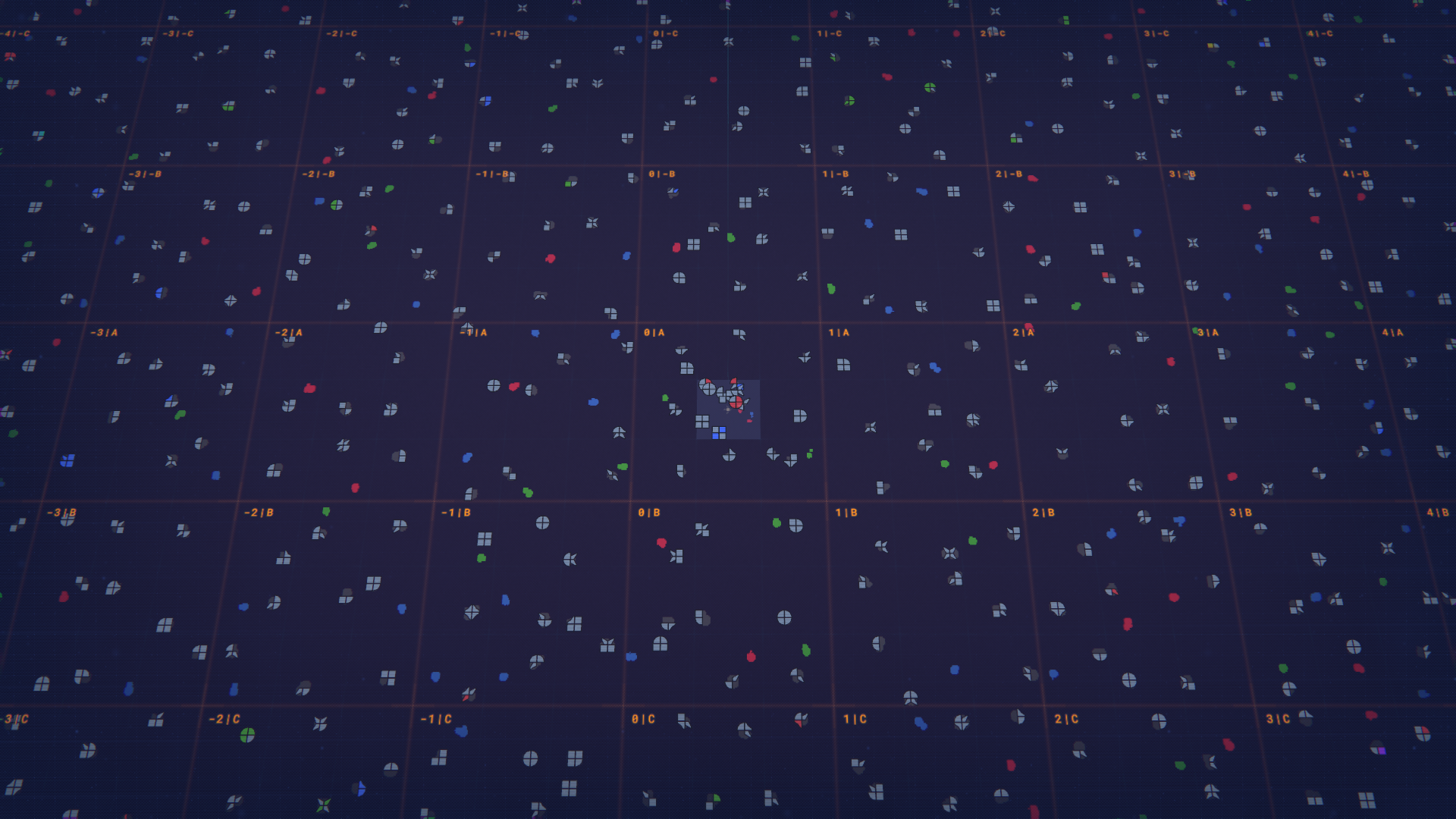
Map is the game-level overview accessed by scrolling out (default Mouse Scroll Wheel) that presents space-scale information about the world, resource distribution and navigation aids. Scrolling out enters Map Mode and exposes alternate view modes and map visualizations that help plan base expansion, locate resources and resolve conflicts between factories and asteroid fields. Map displays multiple coordinate scales — tiles (machine grid), chunks (space grid), super chunks and quadrants — allowing precise placement and large-scale planning.
Map shows resource patches on the space grid, which come in two types: Shape Asteroids and Fluid Asteroids (also called Fluid Deposits). Shape Asteroids generate shapes according to the standard generation rules: Pure Shapes, Full Shapes, Partial Shapes and Half Shapes, combined with color generation classes Uncolored, Primary Color, Secondary Color and Tertiary Color. Fluid Asteroids generate primarily the primary color set for the selected Color Mode (default: Red, Green, Blue). Map Generation options let the player customize spawn parameters: the percentage likelihood of each shape type, color class availability (including enabling secondary and tertiary colors for fluids), and minimum distances from the 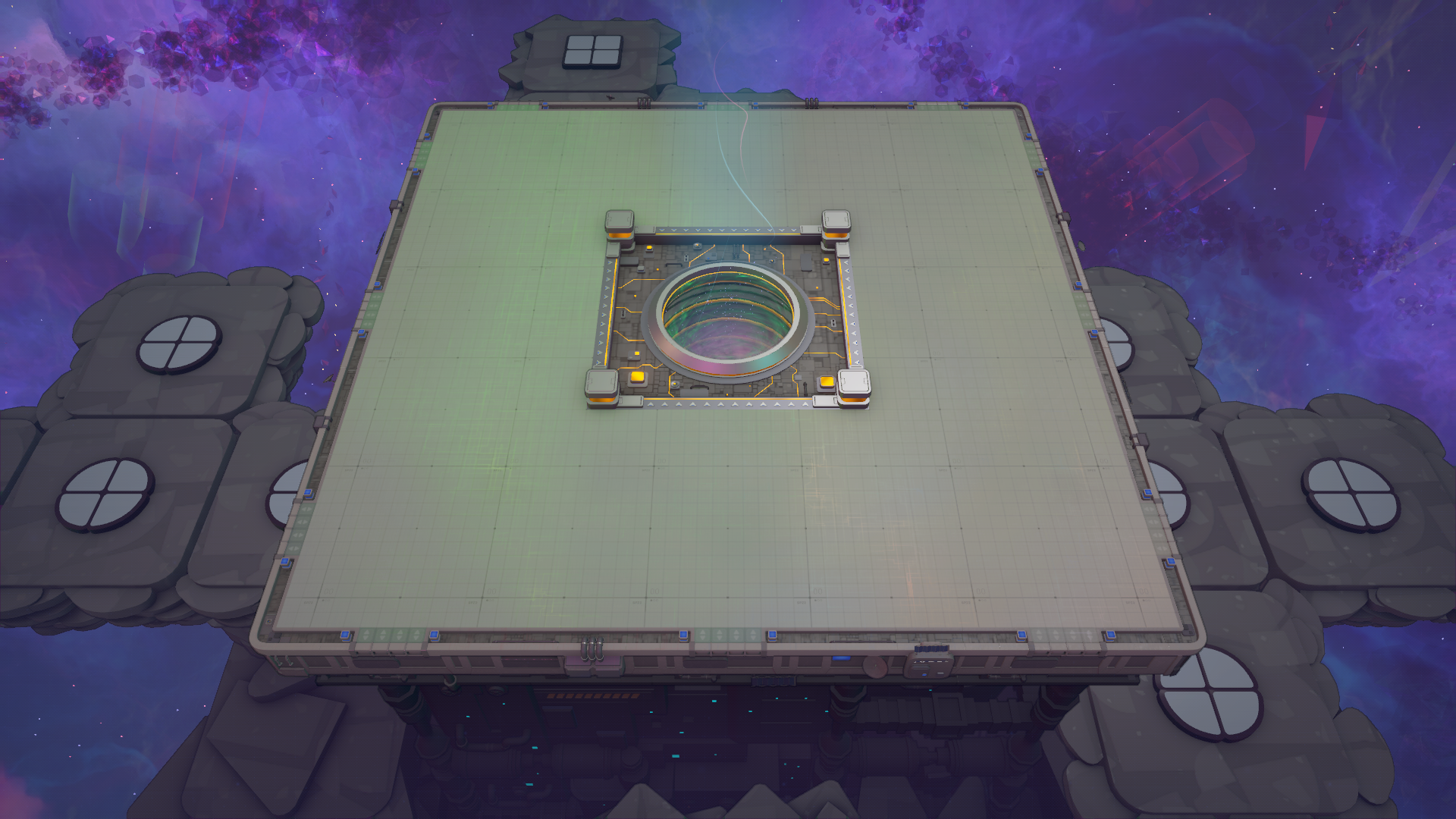
Map includes a number of map visualizations and overlays that can be toggled to reveal different information: Grid, Shape Asteroids, Coordinates, and Conflicts. View Mode toggles provide different perspectives: Machine View, Space View and Map View. Useful navigation commands tied to the map include Jump To Vortex (default H) which centers the camera on the Vortex and switches to Machine View, and Switch Mode (default Space) which toggles between Space View and Machine View.
Players can create Map Markers to annotate locations on the map. Use the Create Map Marker button or the keybind (default L) to place a marker; the interface prompts for an optional name and lets the player choose a default shape code or enter a custom code. Markers are editable: while hovering a marker, press Edit Marker (default Right Click) to change the name, modify the shape code or delete the marker. Map Markers provide persistent labels and shape targets for coordinated logistics, planning mining runs and marking high-priority asteroids.
- Scroll out to enter Map Mode (default Mouse Scroll Wheel). Use Switch Mode (Space) to toggle views and Jump To Vortex (H) to rapidly recenter on the Vortex.
- Toggle visualizations such as Grid, Shape Asteroids, Coordinates and Conflicts to reveal relevant overlays.
- Resource patches are Shape Asteroids and Fluid Asteroids (Fluid Deposits); adjust their spawn behavior via Map Generation options to change type likelihoods, color availability and minimum vortex distances.
- Create Map Markers with L (default) to place named markers with preset or custom shape codes; edit markers with Right Click while hovering to rename, change the code or delete.